Showing posts with label arduino projects. Show all posts

PIR Sensor based Security Alarm Circuit Principle

The main idea of the circuit is to provide security. This is based on PIR sensor with an IC that produces siren. The PIR sensor detects the IR radiations emitted from the humans and it produces a digital output. This digital output is applied to the Arduino UNO.
Based on the digital signal from the PIR Sensor, Arduino UNO then triggers the UM 3561 siren IC. Thus it produces the sound when any human is detected.
The UM3561 is a ROM IC. It generates multi siren tones like ambulance siren, fire engine siren, police siren, machine gun sound.

PIR Sensor based Security Alarm Circuit Diagram


NOTE: The circuit diagram shows the Oscillator Resistor (between Pin 7 and 8 of UM 3561) as 220Ω but it is 220KΩ.

Circuit Components

  • PIR sensor
  • Arduino UNO
  • UM3561 Siren IC
  • NPN Transistor – 2N2222
  • Resistors 10KΩ and 220KΩ
  • Speaker 8Ω
  • Breadboard
  • Connecting Wires

PIR Sensor based Security Alarm Circuit Design

The designed system consists of Arduino UNO, PIR sensor, UM3561 IC, Speaker, transistor and a couple of resistors. The UM3516 IC is a Siren generator IC. It has 8 pins. First and sixth pins are the Sound effect selection Pins. Based on how they are connected, you can choose between 4 different types of sounds.
In this project, I have left open both the Pin 1 and Pin 6 to produce a Police Siren. Pin 5 is connected to +5V through an NPN Transistor (which is activated by Arduino UNO’s Pin 4).
One end of the 220KΩ resistor is connected to the seventh pin of the UM 3561 IC and the other end is connected to the eighth pin of the IC. Output is taken from the third pin of the IC and it is connected to a speaker through a resistor and transistor.
The base of the transistor is connected to the output of the IC through a resistor of 10KΩ. Emitter pin is connected to the ground while one end of the speaker is connected to the collector, while the other end is connected to +5V.
Coming to the PIR Sensor, its output is connected to Pin 3 of Arduino.

Code


int pir = 3;
int siren =4;
void setup()
{
pinMode(pir,INPUT);
pinMode(siren,OUTPUT);
digitalWrite(siren,LOW);
delay(8000);
}
void loop()
{
if(digitalRead(pir))
{
digitalWrite(siren,HIGH);
delay(10000);
digitalWrite(siren,LOW);
while(digitalRead(pir));
}
}


Arduino Based Color Detector

Circuit Diagram


Components Required

  • Arduino Mega 
  • TCS3200 (RGB + Clear) Color Sensor Module 
  • Breadboard (Prototyping board) 
  • Power supply 
  • Connecting wires 

NOTE: We have used Arduino Mega in this project as it has large number of I/O pins and we have connected many devices like TCS 3200 Color Sensor, 16X2 LCD Display and 4 LEDS. For simple Sensor Data using Serial Communication (Sensor information on the Serial Terminal), simple Arduino UNO can be used.

A Brief Introduction to Color Sensor

Technically speaking, colors are figments of our imagination. When we see a red apple, it means that it reflects that particular wavelength (~700 nm for Red) of the electromagnetic spectrum. This energy is absorbed by the eye and based on some chemical reaction, the brain says that particular wavelength is red color.
For computers, a sensors that differentiates between different colors will help in determining the color of the object. We will see a simple color sensor using a photo resistor (Light Dependent Resistor – LDR) and two different colored objects, say red and blue.
When we shine bright red light on both the objects, the red object will reflect the light whereas the blue object will absorb it. So, when red light is incident on both the red and blue objects, the red objects appears brightest to the LDR as it reflects most of the red light.


Similarly, when a bright blue light is incident on both the objects, the blue object will appear the brightest to the sensor. This method is just to understand the working of a color sensor and the actual results may not be accurate.


Practical Color Sensors like TCS3200 are a bit more complicated than this. The TCS3200 color sensor is a programmable color sensor which converts color light to frequency. The output frequency of the sensor is directly proportional to the intensity of the light reflected from the object.
The TCS3200 Color Sensor Module has RGB + Clear Sensor along with 4 bright white LEDs embedded on the board. TCS3200 has an 8 x 8 array of photo diodes, 16 each for Red filters, Blue filters, Green filters and Clear (no filter).
The functional block diagram of TCS3200 Color Sensor is shown in the following image. It consists of color filters, photo diode array, current to frequency converter and final square wave output which can be given directly to a microcontroller.


The TSC3200 Color Sensor IC is an 8 pin IC with SOC package. The following image shows the pin diagram of the Color Sensor IC. In that Pins 1 and 2 (S0 and S1) are output frequency scaling pins. Pin 3 is Output enable pin and is an active low pin. Pin 4 is GND.


Pin 5 is the VDD pin and the maximum supply voltage is 5.5 V. Pin 6 is the output pin through which we can get the square wave output. Pins 7 and 8 (S2 and S3) are Photodiode selection pins.
Pins 1, 2 (S0, S1) and 7, 8 (S3, S4) are of special interest in TCS3200 Color Sensor. S0 and S1 are output frequency scaling pins. With these pins, the frequency of the output square wave can be scaled according to the application or microcontroller used.
The reason for scaling of output frequency is different microcontrollers have different timer configurations and there might be some limitations in the counter functionality of the microcontrollers. The following table shows the percentage of output scaling for different combinations of S0 and S1.


S0S1Output Frequency Scaling (f0)Typical full-scale Frequency
LLPower Down———-
LH2%10 – 12 KHz
HL20%100 – 120 KHz
HH100%500 – 600 KHz

S3 and S4 are photo diode selection pins. They are used to select different photo diodes which are associated with different color filters (Red, Blue, Green and Clear). The following table shows different combinations of S3 and S4 for different types of photo diodes.


S3S4Photodiode Type
LLRed
LHBlue
HLClear (no filter)
HHGreen

The TCS 3200 Color Sensor comes in the form of a Module with all the components like header pins, 4 White LEDs, Resistors and Capacitors in addition to the Actual TCS 3200 Color Sensor. The following image shows the real time Color Sensor Module.


Working of the Project

A simple Color Sensor using Arduino is developed in this project. The color sensor module senses the color in its surroundings. The working of the project is explained here.
As mentioned in the introduction to color sensor section, the TCS3200 Color Sensor has filters for Red, Blue, Green and Clear. The intensity of each color is represented as a frequency. In Arduino, we have fixed the output frequency scale to 100% by applying HIGH to S0 and S1 pins of the color sensor.
We have to use the S2 and S3 pin on the color sensor to select the type of photo diode i.e. red, green or blue. Whenever a particular Photo diode is selected, the PULSEIN feature of the Arduino is activated on the pin that is connected to the output of the Color Sensor.
This will help us to calculate the frequency of the output signal. The same process is repeated for all the three photo diodes: R, G and B. The frequency in all the cases is measured using the PULSEIN feature and is displayed on the Serial Terminal.
Additionally, this information can be used to identify the color placed in front of the sensor and display its color on the LCD and also light up the corresponding LED.

CODE 


Capacitance Meter for Range 1 µF to 4700 µF

Circuit Diagram


Components Required

  • Arduino UNO 
  • 16 x 2 LCD Display
  • 10 KΩ Potentiometer 
  • 10 KΩ Resistor (1/4 Watt) 
  • 220 Ω Resistor (1/4 Watt)
  • Breadboard 
  • Connecting wires 
  • Power supply 
  • Capacitor under test 

Working Principle

In order to measure the capacitance in the range of 1 µF to 4700 µF, we have to use the above circuit. Before explaining the working of the project, we will first see the principle behind this method of capacitance measurement.
The principle behind this capacitance meter lies in one of the basic property of the capacitor: The Time Constant. Time Constant (denoted by Greek Alphabet Tau – τ) is defined as the time taken to charge a capacitor (C) through a resistor (R) to reach 63.2 % of the maximum supply voltage.
Alternatively, the Time Constant (τ) of a capacitor can also be defined as the time taken by a fully charged capacitor C to discharge to 36.8 % of its maximum voltage through a resistor R.
Smaller capacitors will have less time constant as they take less time to charge. Similarly, larger capacitors will have higher time constants.
Mathematically, Time Constant TC or τ = R x C (τ = RC).
Here, τ or TC is the time constant of Capacitor in seconds (s), C is the Capacitance of the Capacitor in Farads (F) and R is the Resistance of the Resistor in Ohms (Ω).
The following circuit and graph will show you the time constant curve for a Capacitor C, charging to supply voltage V through a Resistor R.


We use the same concept in our Arduino based Capacitance Meter. We will charge an unknown capacitor through a known resistance using Arduino pins and calculate the time it takes to reach 63.2 % of supply voltage (3.1 V approximately). Based on the time, we can calculate the Capacitance from the formula C = τ / R.
We will use a 10 KΩ Resistor to charge the capacitor and a 220 Ω Resistor to discharge it. The charge and discharge pins on Arduino are 8 and 9 respectively. The voltage across the capacitor is measured using the Analog Input pin A0.
Initially, we will discharge the capacitor using pin 9 (by setting it as OUTPUT and LOW) to make sure that the capacitor has no charge. We will then start the timer and charge capacitor using the charge Pin8 (by setting it as OUTPUT and HIGH).
Now, we have to monitor the voltage across the capacitor at the analog pin and once it reaches 63.2% of 5V (approximately 648 from analog pin), we have to stop the timer and calculate the capacitance.
This circuit is suitable for comparatively higher capacitance values as we can clearly measure the time constant. For smaller capacitance values, this circuit might not be suitable.

Code


#include <LiquidCrystal.h>
LiquidCrystal lcd(6, 7, 2, 3, 4, 5);
int charge = 8;
int discharge = 9;
int analogPin = A0;
unsigned long start_timer=0;
unsigned long stop_timer=0;
unsigned long duration=0;
////////////////////////////////
float voltage=3;
float answer=0.0;
int measure (void);
/////////////////////////////////
void setup()
{
Serial.begin(9600);
lcd.begin(16, 2);
lcd.print("RANGE 1uF-4700uF");
lcd.setCursor(0,1);
lcd.print("place capacitor ");
pinMode(discharge,INPUT);
pinMode(charge,OUTPUT);
digitalWrite(charge,HIGH);
}
//1021 1022 1023
void loop()
{
while(measure()>=1010 && measure()<=1030)
{
lcd.setCursor(0,1);
lcd.print("place capacitor ");
delay(200);
lcd.setCursor(0,1);
lcd.print(" ");
delay(200);
}
delay(2000);
lcd.setCursor(0,1);
lcd.print(" ");
while(1)
{
//////////////////////////////////////////////discharging
pinMode(charge,INPUT);
pinMode(discharge,OUTPUT);
digitalWrite(discharge,LOW);
lcd.setCursor(0,1);
lcd.print("Discharging-");//12
while(voltage>2.0)
{
voltage=measure();
delay(100);
lcd.setCursor(12,1);
answer=voltage * (99.0 / 1023.0);
lcd.print((99-answer),0);
lcd.setCursor(14,1);
lcd.print("%");
}
lcd.setCursor(0,1);
lcd.print(" ");
delay(1000);
lcd.setCursor(0,1);
lcd.print("charging-");//9
lcd.setCursor(13,1);
lcd.print("%");
//////////////////////////////////////////////charging
pinMode(discharge,INPUT);
pinMode(charge,OUTPUT);
digitalWrite(charge,HIGH);
start_timer=micros();
while(measure()<648)
{
lcd.setCursor(9,1);
lcd.print(measure()*(100.0/1023.0),1);
}
stop_timer=micros();
duration=stop_timer-start_timer;
answer=duration/10000;
lcd.clear();
// lcd.setCursor(0,1);
// lcd.print(" ");
lcd.setCursor(0,0);
lcd.print("value = ");
lcd.print(answer);
lcd.print("uF");
delay(3000);
while(1)
{
lcd.setCursor(0,1);
lcd.print("reset to measure");
delay(200);
lcd.setCursor(0,1);
lcd.print(" ");
delay(200);
}
}
}
int measure (void)
{
int value;
value=analogRead(analogPin);
return value;
}

Line Follower Robot Circuit Diagram


Components in the circuit

  • 8051 Microcontroller
  • Development Board for 8051 Microcontroller (preferred)
  • 10KΩ Resistors X 2
  • 10µF Capacitor
  • 11.0592MHz Crystal
  • 33pF Capacitors X 2
  • Push Button
  • Motor driver Module (L298N)
  • Robot Chassis with Motors
  • IR Sensors x 2

How to Design a Line Following Robot?

 The circuit consists of 8051 microcontroller, IR Sensors (with IR transmitter and IR Receiver), L298N Motor Driver Module, Robot Chassis with 4 wheels and 4 motors, battery holder.
8051 microcontroller is the main component of the project. It is an 8 bit microcontroller with 32 programmable I/O pins. This has many peripheral features like programmable UART, two 8-bit timer/counter, two interrupts, external memory access etc.
 The DC motors of the robot are connected to the controller using a motor driver IC. As the output of the controller is maximum 5V with very small current, it cannot drive the motors. So, to amplify this voltage motor driver IC is used. L298N can drive motors up to 36v and can provide a drive current of 3A.
The driver IC has 15 pins and is usually available in multiwatt15 Package. These ICs are easily available in the market as Modules. The inputs to the Motor Driver Module are connected to PORT2 pins P2.0, P2.1, P2.2 and P2.3. 
The two IR sensors are connected to P2.6 and P2.7 pins of the microcontroller. Arrange the chassis and connect the four wheels of the robotic vehicle to the motors which are in turn connected to the microcontroller.

Design of IR Sensors

IR sensor circuit consists of mainly IR transmitter and IR receiver. IR transmitter is similar to an LED. Its operating voltage is around 1.4V. So to protect it, a 150Ω resistor is placed in series with it and is connected in forward biased. IR receiver is connected in reverse bias and a 10KΩ resistor is placed between VCC and the receiver. Output is taken between resistor and IR receiver.
Since this is an analog output, we can convert it to a digital HIGH and LOW with the help of a simple comparator IC like LM358, for example. The IR Sensor Module used in this project uses the same configuration and the circuit diagram is shown below.


Working of IR Sensors

The IR transmitter continuously transmits the IR rays. When IR transmitter is on the black surface these rays were absorbed by the surface and when it is on white surface these rays were reflected. The IR receiver has maximum resistance when no IR rays are received and voltage from VCC flows through the resistor. At the output pin, voltage is approximately 5V.
As the intensity IR rays received by the receiver increases, resistance value decreases and reverse break down occurs. Thus voltage through the resistor is grounded. So, at the output pin, it will produce 0V.


Line Following Robotic Vehicle Circuit Working

  1. Initially draw the path on a light colored surface with black color tape.
  2. Place the robot on the floor.
  3. Now power on the circuit.
  4. Robot moves in the specified path.
  5. When it moves out of path, sensors check it and automatically adjust the robot.


Code


#include<reg51.h>
sbit mot1=P2^0;
sbit mot2=P2^1;
sbit mot3=P2^2;
sbit mot4=P2^3;
sbit s_left=P2^6;
sbit s_right=P2^7;
void forward (void);
void backward (void);
void left (void);
void right (void);
void forward (void)
{
mot1=0;
mot2=1;
mot3=1;
mot4=0;
}
void backward (void)
{
mot1=0;
mot2=1;
mot3=0;
mot4=1;
}
void left (void)
{
mot1=0;
mot2=1;
mot3=0;
mot4=0;
}
void right (void)
{
mot1=0;
mot2=0;
mot3=1;
mot4=0;
}
void stop (void)
{
mot1=0;
mot2=0;
mot3=0;
mot4=0;
}
void main()
{
s_left=1;
s_right=1;
while(1)
{
if(s_left==0 && s_right==0)
{
forward();
}
else if(s_left==1 && s_right==1)
{
stop();
}
else if(s_left==0 && s_right==1)
{
left();
}
else if(s_left==1 && s_right==0)
{
right();
}
}
}

Circuit Diagram of Automatic Room Lights using Arduino

The following image shows the circuit diagram of the project implemented using Arduino UNO, PIR Sensor and a Relay Module.


If you do not have a relay module, you can make one yourself using very simple hardware. The following circuit diagram shows the project being implemented with the help of discrete components for the Relay Module.


CAUTION: The project involves connection with 230V AC Mains (or 110V, depending on where you live!!!). Be extremely careful when connecting the bulb and Relay to mains supply. If you are unfamiliar with the connections, I strongly recommend having an adult supervision (or an expert supervision).  

Components Required for Automatic Room Lights using Arduino

  • Arduino UNO 
  • PIR Sensor 
  • 5V Relay Module (Relay Board) 
  • LED 
  • 100Ω Resistor (1/4 Watt)  
  • Connecting Wires 
  • Breadboard 
  • Power Supply 
If you do not have a Relay Module, use the following components:
  • 5V Relay  
  • 2N2222 (or BC547) NPN Transistor 
  • 1N4007 PN Junction Diode 
  • 1KΩ Resistor (1/4 Watt) 

Component Description

PIR Sensor

We have already seen about PIR Sensor in the PIR Motion Sensor Tutorial and also implemented in a variety of projects like Home Security System and Automatic Door Opener.

Relay Module

A Relay Module is a very useful component as it allows Arduino, Raspberry Pi or other Microcontrollers to control big electrical loads. We have used a 2-channel Relay Module in this project but used only one relay in it. The relay module used in this project is shown below.

In order to control a single relay on the board, we need to use three pins of the relay module: VCC, GND and IN1.


NOTE: The relay module used in this project is as active LOW one i.e. when the IN1 pin is HIGH, the relay is OFF and when it is LOW, the relay is activated. This point is important while programming the Arduino UNO.

Circuit Design

PIR Sensor’s Data OUT Pin is connected to Arduino’s Digital I/O Pin 8. An LED is connected to pin 13 of Arduino to indicate whether the light is turned ON or OFF.
The IN1 pin of the Relay Module is connected to Pin 9 of Arduino. A bulb is connected to mains supply through relay. One terminal of the bulb is connected to one wire of the mains supply. The other terminal of the bulb is connected to the NO (Normally Open) contact of the Relay Module.
COM (Common) contact of the Relay is connected to the other wire of the mains supply. Be careful when connecting this part of the project.

Code

The code for the Automatic Room Lights using Arduino and PIR Sensor is given below.

Pathfinder Robot Full Arduino project

ABOUT THIS PROJECT

“Some people worry that artificial intelligence will make us feel inferior, but then, anybody in his right mind should have an inferiority complex every time he looks at a flower.” - Alan Kay

Synopsis

One of the substantial central issues in designing mobile robots is obstacle avoidance. This paper represents the design of an Obstacle Avoiding Robot that can detect obstacles in its path and maneuver around them by making intelligent decisions. It is an Arduino Microcontroller and Adafruit Motor Shield based robotic vehicle which employs an ultrasonic sensor for air medium. For providing the necessary autonomous functions, software application known as Arduino Software was used . The integration of an ultrasonic distance sensor mounted on a servo motor provided a much wider accuracy for this robot to detect the surrounding obstacles. This robot gained more precision by the implementation of a buzzer and a diffused light through which it can indicate obstacle detection mode as well as the speed of the robot in different situations. As a fully autonomous robot, it has the ability to traverse in unfamiliar environments without making any collision. And this developed method can be used for further improvements to increase the adaptability of obstacle detection in diverse situations.


COMPONENTS AND SUPPLIES

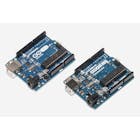
A000066 iso both
Arduino UNO & Genuino UNO
One of the primary components.
×1
51gzz5eu9pl. sx425
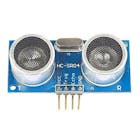
Ultrasonic Sensor - HC-SR04 (Generic)
One of the primary components.
×1
Adafruit industries ada258 image 75px
Li-Ion Battery 1000mAh
One of the primary components.
×2
09264 1
RGB Diffused Common Cathode
One of the primary components.
×1
Adafruit industries ada1536 image
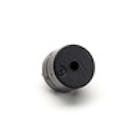
Buzzer
One of the necessary supplies.
×1
08377 02 l
Resistor 330 ohm
One of the necessary supplies.
×3
Adafruit industries ada62 image 75px
USB-A to B Cable
One of the necessary supplies.
×1
11026 02
Jumper wires (generic)
One of the necessary supplies.
×20


NECESSARY TOOLS AND MACHINES


Zvpgre11knthhycoezxn
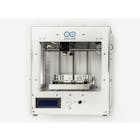
Arduino Materia 101
One of the primary machines.


A4kb1xynkid5ebvjyil7
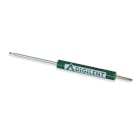
Digilent Screwdriver


Interpretation

The included libraries added in block code are as follows,
AFMotor.h
Servo.h
The defined connections assigned in inline code are as follows,
define BuzzPIN A0
define TrigPIN A1
define EchoPIN A2
define LEDBPIN A3
define LEDGPIN A4
define LEDRPIN A5
define DCMROFF 25
The expected algorithms rendered in robotic architecture are as follows,
  • Capacity to detect obstacles in its path based on predetermined threshold distance.
  • Search for new course to a relatively open direction by making intelligent decision.
  • Indicate the speed and obstacle detecting mode by RGB Diffused LED and buzzer.
An autonomous robot is one that has some kind of built in Artificial Intelligence functions. This paper provided the necessary details to design a mobile robot that avoids obstacles, navigates on its own and indicates motion by turning on a particular color of a diffused light. The robot is built on Arduino platform with the help of its software to integrate proper assembly codes for which it achieved the required intelligence. Thus the developed robot is fully autonomous and capable to carry out its operation without any human interaction. After transferring the code, this robot has the ability to move avoiding all obstacles in an unknown environment with considerable accuracy.

MARI themes

Powered by Blogger.